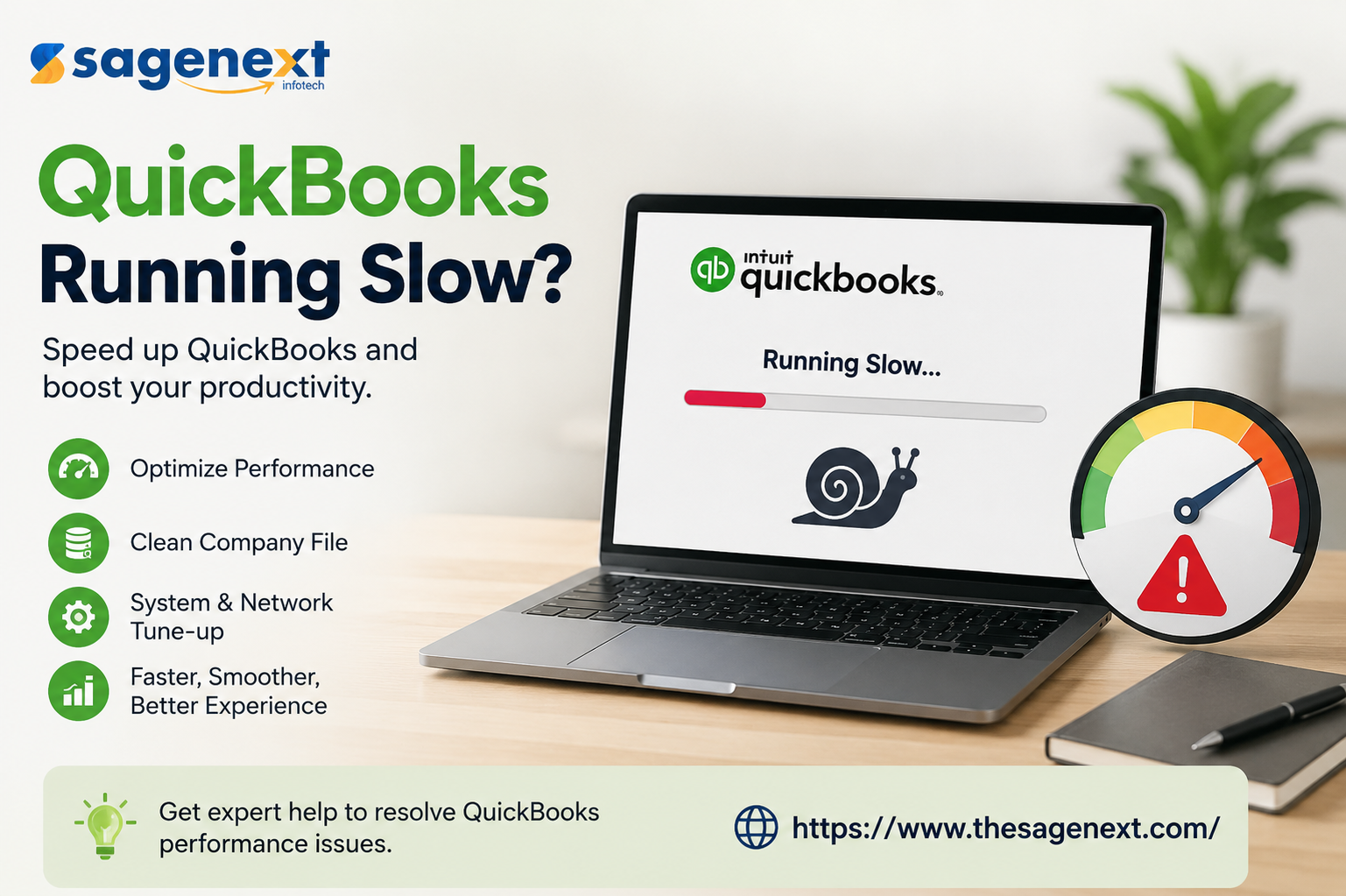
If QuickBooks is running slow in 2026, you’re not alone. This is one of the most common complaints among businesses, accountants, and CPA firms. Tasks that should take seconds — opening company files, generating reports, switching between tabs — are suddenly taking minutes.
That slowdown isn’t just annoying. It directly impacts productivity, delays financial operations, and increases the risk of errors.
The truth is simple: QuickBooks performance issues usually aren’t random. They are caused by specific system limitations, outdated setups, or growing workloads that the current environment can’t handle anymore.
Let’s break down why QuickBooks becomes slow — and what actually fixes it.
- Large Company Files Are Slowing Everything Down
As your business grows, so does your QuickBooks data file. Years of transactions, invoices, payroll records, and inventory data get stored in a single file.
Over time, this leads to:
- Slow file opening
- Lag during report generation
- Delays when switching between modules
- Frequent freezing
QuickBooks is not designed to handle extremely large files efficiently on basic desktop systems. Once your file size crosses a certain threshold, performance drops significantly.
What Helps
- Archive old data
- Use “Condense Data” utility carefully
- Upgrade to higher system resources
But for growing businesses, a more reliable solution is moving to QuickBooks Desktop Enterprise with Hosting, where large files are handled on high-performance cloud servers instead of local machines.
- Weak Hardware and Outdated Systems
A major mistake businesses make is running modern accounting workloads on outdated computers.
QuickBooks in 2026 is doing much more than basic bookkeeping. It handles:
- Payroll processing
- Inventory tracking
- Advanced reporting
- Multi-user access
- Third-party integrations
Older systems simply can’t keep up.
Common Signs
- High CPU usage
- Low RAM warnings
- System freezing when multiple users log in
- Delays during backups
Real Fix
Upgrading hardware helps, but it’s a temporary solution. Many businesses are shifting toward QuickBooks Hosting Services to eliminate hardware limitations altogether.
- Multi-User Mode Performance Issues
If your team uses QuickBooks in multi-user mode, performance problems are almost guaranteed at some point.
Common issues include:
- Slow response when multiple users are active
- Frequent disconnections
- Data syncing delays
- Network-related errors (H202, H505)
This usually happens because QuickBooks is running on a local server that isn’t designed for heavy multi-user traffic.
Better Approach
Hosted environments provide centralized access with optimized server performance, which significantly improves multi-user efficiency.
That’s why businesses are increasingly moving toward QuickBooks Desktop Enterprise with Hosting instead of relying on in-house servers.
- Background Applications and System Conflicts
QuickBooks doesn’t run in isolation. It shares system resources with other applications.
If your system is running:
- Antivirus scans
- Windows updates
- Backup software
- Browser-heavy workloads
it can slow down QuickBooks significantly.
What You Can Do
- Close unnecessary applications
- Schedule antivirus scans during off-hours
- Keep Windows and QuickBooks updated
- Check for software conflicts
Still, these are short-term optimizations. They don’t solve the core issue of limited system resources.
- Network Latency and Remote Access Problems
Many businesses now access QuickBooks remotely using VPNs or remote desktop tools.
This often causes:
- Slow screen loading
- Input lag
- Connection timeouts
- Delayed data updates
VPN-based setups were never designed for high-performance accounting workloads.
Smarter Alternative
QuickBooks Hosting Services eliminate the need for VPNs by providing direct cloud access with better speed and stability.
- Corrupted Data and File Issues
Sometimes QuickBooks runs slow because of internal data issues.
Signs include:
- Reports taking too long to load
- Errors while verifying data
- Unexpected crashes
- Missing transactions
QuickBooks provides tools like:
- Verify and Rebuild Data
- File Doctor
These can help fix minor corruption, but repeated issues often indicate deeper system problems.
7. Poor Database Server Configuration
One overlooked reason for slow QuickBooks performance is improper database server setup.
Issues include:
- Incorrect hosting configuration
- Disabled QuickBooks services
- Improper folder permissions
- Firewall blocking database ports
These technical misconfigurations can drastically reduce speed, especially in multi-user mode.
What You Should Do
- Ensure proper hosting settings
- Configure firewall correctly
- Keep database server manager updated
- Regularly monitor server performance
If this sounds too technical, that’s because it is. Most businesses don’t have the expertise to manage this consistently.
- Add-ons and Integrations Slowing Down Performance
In 2026, most businesses use QuickBooks with third-party integrations like:
- CRM tools
- Payment gateways
- Inventory management software
- E-commerce platforms
While useful, these integrations can:
- Increase processing time
- Create sync delays
- Overload system resources
What Helps
- Remove unused integrations
- Monitor API sync frequency
- Use optimized integrations only
But again, if your system is already struggling, integrations will make it worse.
8. Inefficient Workflow Habits Are Slowing QuickBooks Too
This is something most people ignore.
Even if your system is decent, poor usage habits inside QuickBooks can slow everything down.
Common Mistakes Users Make
- Keeping too many windows open at once
- Running heavy reports during peak working hours
- Not closing background QuickBooks sessions
- Using outdated workflows instead of optimized processes
QuickBooks doesn’t handle multitasking like modern web apps. The more you overload it, the worse it performs.
What Actually Helps
- Train your team on efficient usage
- Limit simultaneous heavy operations
- Schedule large reports during off-hours
- Close inactive sessions regularly
Most businesses blame the software — but sometimes the issue is how it’s being used.
- Lack of Regular Maintenance
QuickBooks is not a “set it and forget it” system.
If you’re not maintaining it, performance will degrade over time.
What Maintenance Should Include
- Regular data verification
- Rebuilding company files when needed
- Clearing temp files
- Updating QuickBooks to the latest version
- Monitoring file size growth
Ignoring maintenance leads to:
- Slower load times
- Higher chances of file corruption
- Increased crash frequency
Think of it like a database — because that’s exactly what it is.
- Windows Updates and Compatibility Issues
Another major reason QuickBooks slows down in 2026 is system-level conflicts.
Windows updates often:
- Change system libraries
- Break dependencies
- Affect QuickBooks components
Result?
- Slower startup
- Random crashes
- Missing features (like PDF tools)
What You Should Do
- Keep QuickBooks updated along with Windows
- Avoid running unsupported QuickBooks versions
- Monitor updates before installing them on production systems
This is one of the reasons businesses move to QuickBooks Desktop Enterprise with Hosting — because the hosting provider manages compatibility and updates for you.
- Security Software Interference
Ironically, the tools meant to protect your system can slow it down.
Antivirus and firewall software can:
- Scan QuickBooks files continuously
- Block database connections
- Slow down multi-user performance
Fix
- Whitelist QuickBooks processes
- Configure firewall exceptions
- Avoid aggressive real-time scanning for QB files
If this isn’t configured properly, your system will always feel slow — no matter how powerful it is.
- Storage Type Makes a Huge Difference
This is a technical detail, but it matters a lot.
If you’re still running QuickBooks on:
- HDD (Hard Disk Drive) → expect slow performance
- SSD (Solid State Drive) → significantly faster
Why?
QuickBooks constantly reads and writes data. SSDs handle this much faster.
Reality Check
Even SSD upgrades won’t fix:
- multi-user lag
- network issues
- large file inefficiencies
That’s where QuickBooks Hosting Services still outperform local setups.
- Scalability Is the Real Problem (Not Speed)
Most people think the issue is speed.
It’s not.
It’s scalability.
QuickBooks works fine when:
- 1–2 users
- Small file size
- Minimal integrations
But once you add:
- multiple users
- remote access
- large datasets
- complex workflows
your system collapses.
This Is Why Businesses Switch to Hosting
With QuickBooks Desktop Enterprise with Hosting, you get:
- scalable resources
- consistent performance
- better handling of growth
Instead of upgrading hardware every year, you scale your infrastructure.
Real Business Impact of Slow QuickBooks
Let’s stop pretending this is just a “technical issue.”
Slow QuickBooks directly affects:
1. Revenue
- Delayed invoicing
- Missed billing cycles
2. Payroll
- Late salary processing
- Compliance risks
3. Productivity
- Employees wasting hours daily
- Frustration and inefficiency
4. Decision-Making
- Slow reports = delayed decisions
If your team loses even 1 hour per day due to slow performance, that’s hundreds of hours lost annually.
Why Hosting Fixes Most Performance Issues
At some point, tweaking settings and upgrading hardware stops working.
That’s where QuickBooks Desktop Enterprise with Hosting becomes a practical solution.
Hosted QuickBooks environments provide:
- High-performance cloud servers
- Faster processing speeds
- Better multi-user management
- Centralized data access
- Automatic backups
- Reduced IT maintenance
Instead of relying on a single machine, your workload runs on optimized infrastructure designed for accounting operations.
When Should You Actually Consider Hosting?
Here’s the blunt truth — not every business needs hosting.
But you should seriously consider it if:
- Your QuickBooks file is large
- You have multiple users
- Your system crashes or freezes regularly
- Remote access is slow
- IT maintenance is becoming expensive
- You’re losing productivity due to performance issues
If even 2–3 of these apply, your current setup is already failing.
Quick Performance Optimization Checklist
Before jumping to hosting, fix the basics:
- Upgrade to SSD
- Increase RAM (minimum 16GB recommended)
- Close unnecessary apps
- Clean up company file
- Run Verify & Rebuild
- Optimize multi-user setup
- Configure firewall and antivirus properly
- Reduce integrations
If performance still sucks after this — your system has hit its limit.
Final Extended Verdict
Let’s be clear — QuickBooks itself isn’t the problem.
Your setup is.
In 2026, businesses expect:
- real-time access
- remote collaboration
- large data handling
- stable multi-user environments
Local systems struggle to deliver that consistently.
That’s why QuickBooks Hosting Services and QuickBooks Desktop Enterprise with Hosting are no longer “nice-to-have” — they’re becoming the standard for serious businesses.
Read More: https://searchies.online/quickbooks-enterprise-platinum-edition/